quickadd documentation
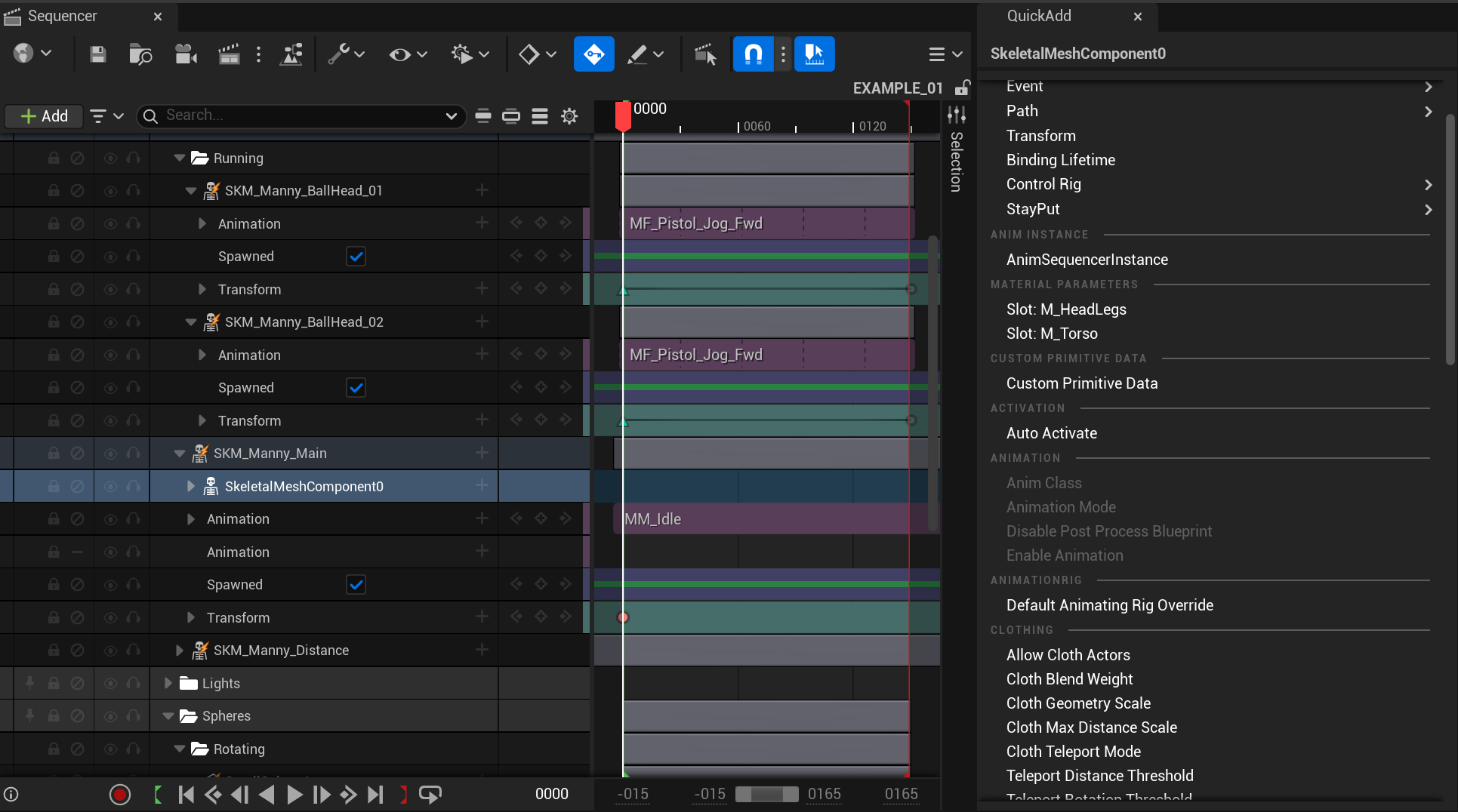
QuickAdd - Sequencer Property Panel
Add tracks and properties without the menu closing.
Requirements
Unreal Engine 5.4+
A Level Sequence open in Sequencer
Plugin Dependencies (enabled automatically):
LevelSequenceEditor
Installation
Copy the QuickAdd folder into your project's Plugins/ directory
Open your project in Unreal Editor
The plugin loads automatically. No activation required.
Opening StayPut
Open a Level Sequence in Sequencer
Go to Window > QuickAdd, or find QuickAdd in the Sequencer toolbar
The QuickAdd panel opens as a dockable tab. Dock it beside Sequencer for easy access.
usage
QuickAdd responds to what you select in Sequencer. Click different bindings and tracks to switch between views.
Property & Track Browser
Select an actor or component binding in the Sequencer outliner (e.g., a CineCameraActor, a StaticMeshComponent, a Light). QuickAdd shows every property and track that can be added to that binding. The same list the native "+" menu shows.
Click any property or track to add it immediately
The menu stays open after adding. Keep clicking to add more.
Already-added properties appear dimmed
Use the search box at the top to filter by name
Properties are organised by category (Activation, CameraOptions, CameraSettings, etc.)
Material Parameters
Select a material track or material element on any mesh actor. QuickAdd shows all material parameters from that material, grouped by type.
Scalar Parameters: float values like roughness, opacity, blend weights
Vector Parameters: colours and vector values
Texture Parameters: texture overrides
Already-added parameters are dimmed. Click any parameter to add it as a track. The list updates instantly. The parameter you just added dims and you can continue adding more.
Animation Picker
Select a skeletal mesh binding that has an animation track. QuickAdd shows a browsable asset picker filtered to animations compatible with that skeleton.
Thumbnails show animation previews
Search by name to find specific animations
Click to add the animation. No popup window that closes on you.
Technical Notes
QuickAdd uses Sequencer's own ViewModel API to build the property list. Custom track types registered by other plugins appear automatically.
All add operations create proper undo transactions. Ctrl+Z reverses any addition.
The panel has no effect on packaged builds. It is editor-only.